
9.5How do I cost renovation work step by step?
The Work costing module uses the actual quantities from your plan to produce an estimate you can defend in front of a client.
1. Open the module and describe the property
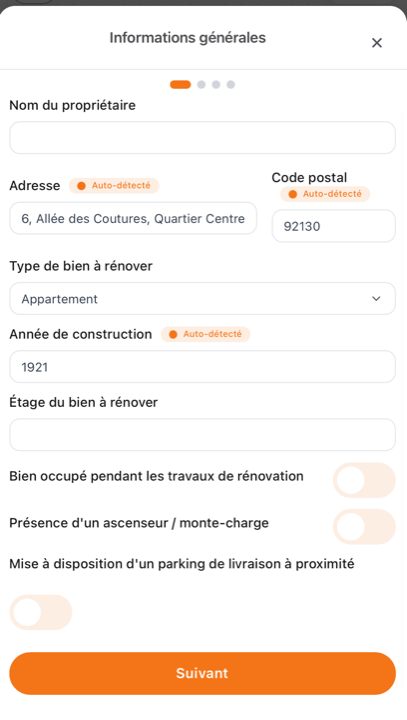
From the toolbar, tap Costing. Fill in the general information: owner name, address, postcode, property type, year of construction, floor concerned. State whether the property is occupied during the works, whether there is a lift or goods lift, and whether delivery parking is available nearby — these constraints affect the cost.
Address, postcode and construction year are pre-filled as soon as the project is geolocated: they come from the building data.
2. Choose the type of renovation
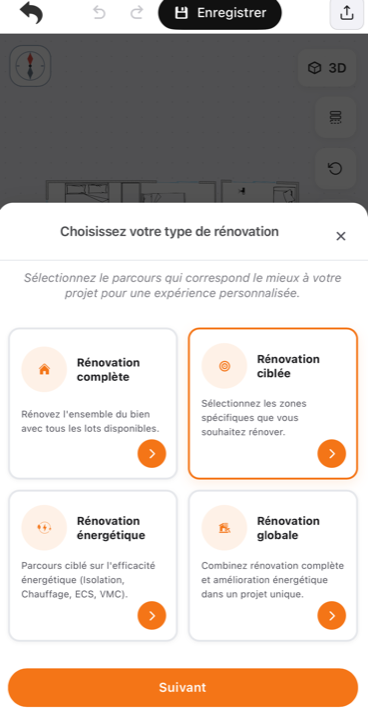
| Type | Scope |
|---|---|
| Full renovation | The entire property |
| Targeted renovation | Only the selected rooms |
| Energy retrofit | Insulation, heating, hot water, ventilation — France only |
| Global renovation | Full renovation and energy retrofit combined |
3. Set the scope
For a targeted renovation, select the rooms to renovate directly on the plan, then confirm.
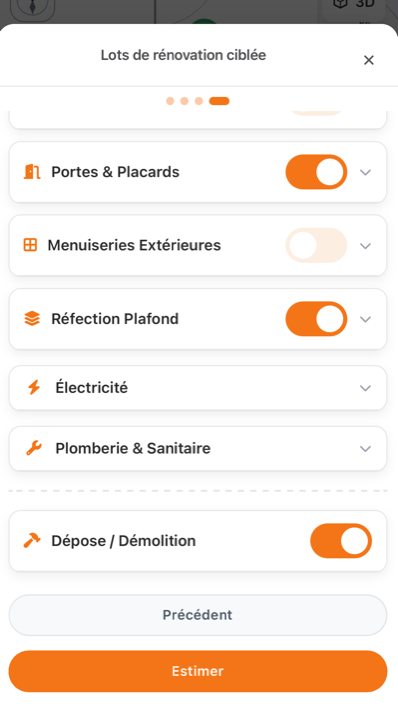
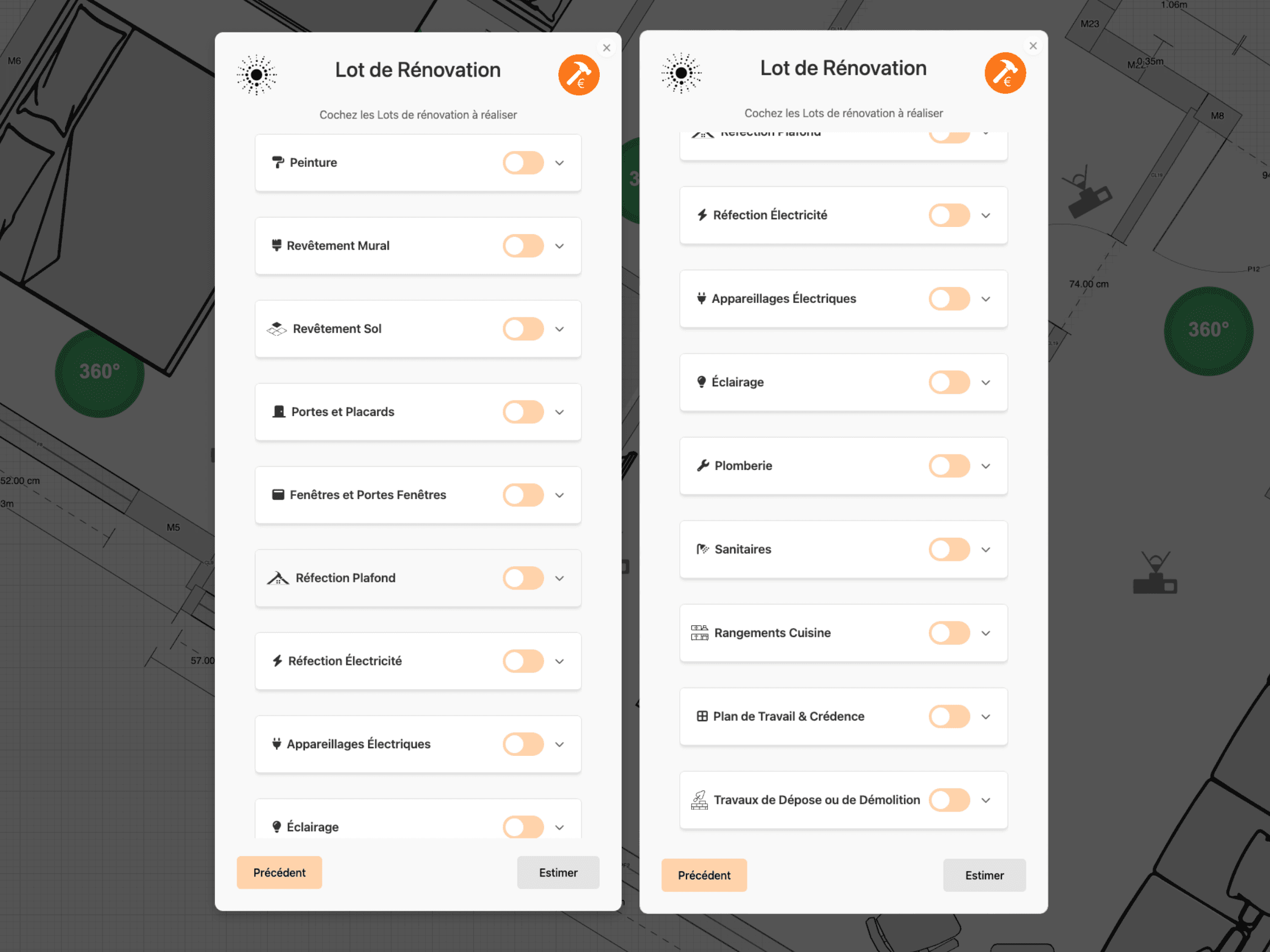
Then pick the quality level — entry, mid or high-end — and switch on the relevant work packages: doors and cupboards, external joinery, ceiling works, electrics, plumbing and sanitary, strip-out and demolition.
Each package unfolds so you can refine the works included; the ones you leave off drop out of the calculation.
4. Review and export
The estimate is shown as a range by quality level — entry to mid, mid to high, high-end and above — then broken down package by package. Amounts include VAT.
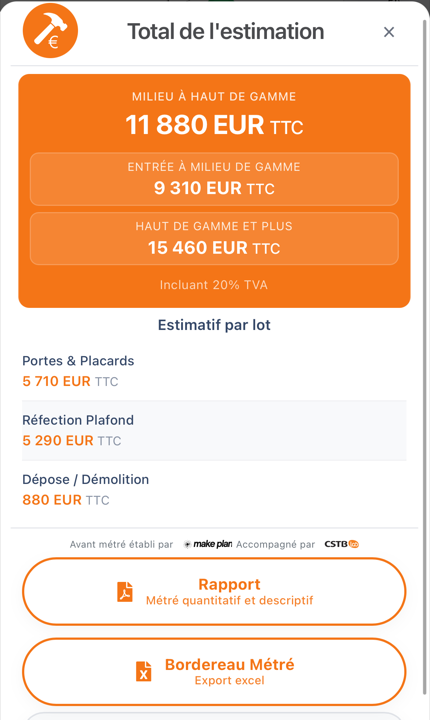
The quantity take-off is produced by Make Plan and backed by the CSTB. Two outputs are available:
- the Estimate report, a shareable PDF;
- the Measurement schedule, a spreadsheet for refining quantities and unit prices ahead of a contractor tender.
Updated on July 25, 2026